Free tool

Free Email Signature Generator for Nonprofits

Make an email signature with a donate button for everyone on your team. Fill in a few lines, copy it and paste it into Gmail, Outlook or Apple Mail. It works with any donation link.

Free, no sign-up. Nothing you type leaves your browser.

Right-click your logo on your website and copy the image address. It must start with https.

Colour

Best wishes,

Your name

Add your donation link to put a donate button in the signature.

Givelayer gives every charity a giving page, a short link and a QR code, so the link in your signature matches your flyers and posts. No subscription required.

How to add your signature to Gmail, Outlook and Apple Mail

Make your signature above, press Copy signature, then paste it into your email app’s signature settings. Do it on a computer: phone apps often keep a plain-text signature of their own.

Gmail

  1. Press Copy signature above.
  2. In Gmail on a computer, open Settings, then See all settings, and scroll to Signature on the General tab.
  3. Create a new signature, click in the box and paste.
  4. Choose it as the default for new emails and replies, then press Save changes at the bottom of the page.

Gmail's phone app has its own plain-text signature setting. Set the signature on a computer for the formatted version.
Outlook

  1. Press Copy signature above.
  2. In Outlook on the web or the new Outlook, open Settings, then Account (or Accounts), then Signatures.
  3. Add a new signature, paste it into the box and save.
  4. Pick it for new messages and for replies and forwards.

Classic Outlook for Windows keeps signatures under File, Options, Mail, Signatures. Paste into the editor there the same way.

Apple Mail

  1. Press Copy signature above.
  2. In Mail on a Mac, open Settings (or Preferences), then Signatures.
  3. Choose your account, add a signature with the plus button and paste it into the right-hand box.
  4. Send yourself a test email to check how it looks.

What to include in a nonprofit email signature

A signature answers two questions for whoever reads your email: who is this, and how do I reach them. For a charity it can answer a third, how do I help. Keep it to a few short lines:

  • Your name and role, so the reader knows who they are dealing with.
  • Your charity's name, written the way it appears on your receipts and website.
  • One or two ways to reach you: a phone number, your email or your website. Not all of them.
  • One line about your work, if you have a good one. A mission in a sentence, not a paragraph.
  • One donate button. A single clear action is easier to notice than a row of links.

Leave out quotes, long legal notices and a stack of social icons. Each one pushes the button further down and makes the signature harder to read on a phone.

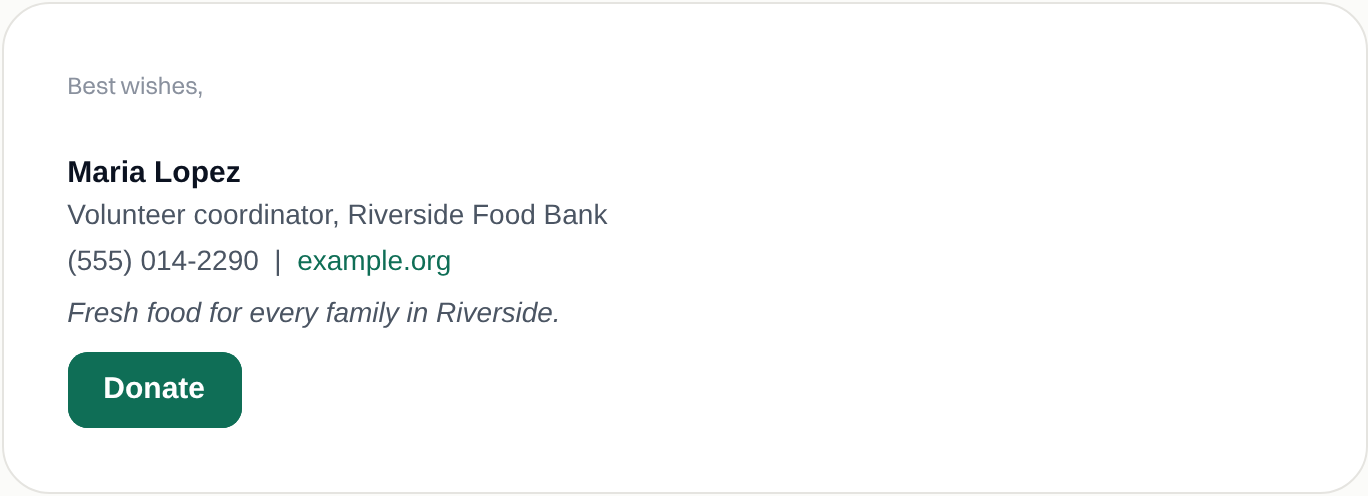
An example nonprofit email signature made with the generator: name, role, charity, contact line, a one-line mission and a Donate button

Signatures for the whole team

  • Make one, then change the name. Fill this in once with your colour, logo and button, then change the name, role and phone for each person.
  • Use your charity's own logo address. The logo has to live somewhere online, such as your website. Copy the image address and paste it here; nothing is uploaded.
  • Send a test to a Gmail and an Outlook address before rolling it out, and click the button to check it opens the right page.
  • Update it with the seasons. Swap the line about your work for your current appeal, then change it back when the appeal ends.

Where the button can take people

The button works with any donation link: Givelayer's, another platform's or a page on your own website. A Givelayer giving page also comes with a short link and a QR code, so the address in your signature can be the same one on your flyers and social posts.

Frequently asked questions

How do I add a donate button to my email signature?

Fill in the generator, add your donation link, press Copy signature and paste it into your email app's signature settings. Send yourself a test and click the button to check it.

Does it work in Gmail and Outlook?

Yes. The signature is a small table with inline styles, which Gmail, Outlook and Apple Mail display. Paste it into the signature settings on a computer; phone apps often keep a plain-text signature of their own.

Why does my logo not show?

The logo is loaded from the web address you entered, so that address must be public and start with https. Some email apps hide images until the reader allows them, so the signature still reads well without the logo.

Can I use it with any donation platform?

Yes. The button is a plain link, so it works with any donation page address, whether it is on Givelayer, another platform or your own website.

Is anything I type sent to Givelayer?

No. The signature is built in your browser and nothing you type leaves it. Your logo stays wherever you already host it.

About this page

    How we made this: the signature is a table with inline styles, built in your browser, using the same email button as our donate button generator. Mail apps change their menus, so look for the setting called Signatures if a step has moved.

    Last updated 4 November 2026.